 vigil
vigilIn the field / Device tutorials
Device overview
Learn to sign in, talk to your team, and use the Vigil guard device.
These walkthroughs show the existing Vigil guard app. Your screens may vary by device and app version.
- Start at the Home Screen
- Enter Your ID Number
- Register Your Profile (First Time Only)
- Home Screen
- Access Control
- Occurrence Book
Step 1
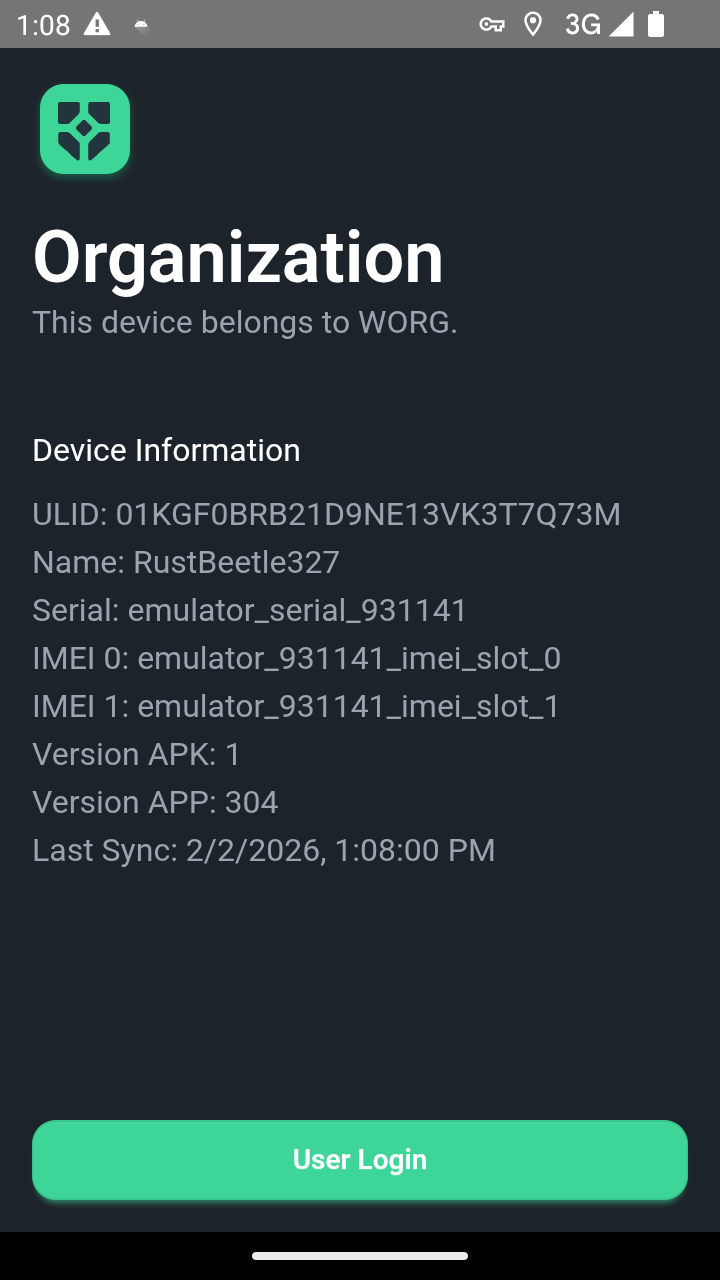
Start at the Home Screen
When you receive your device, you'll see this screen. Tap the "User Login" button to begin the sign-in process.
Step 2
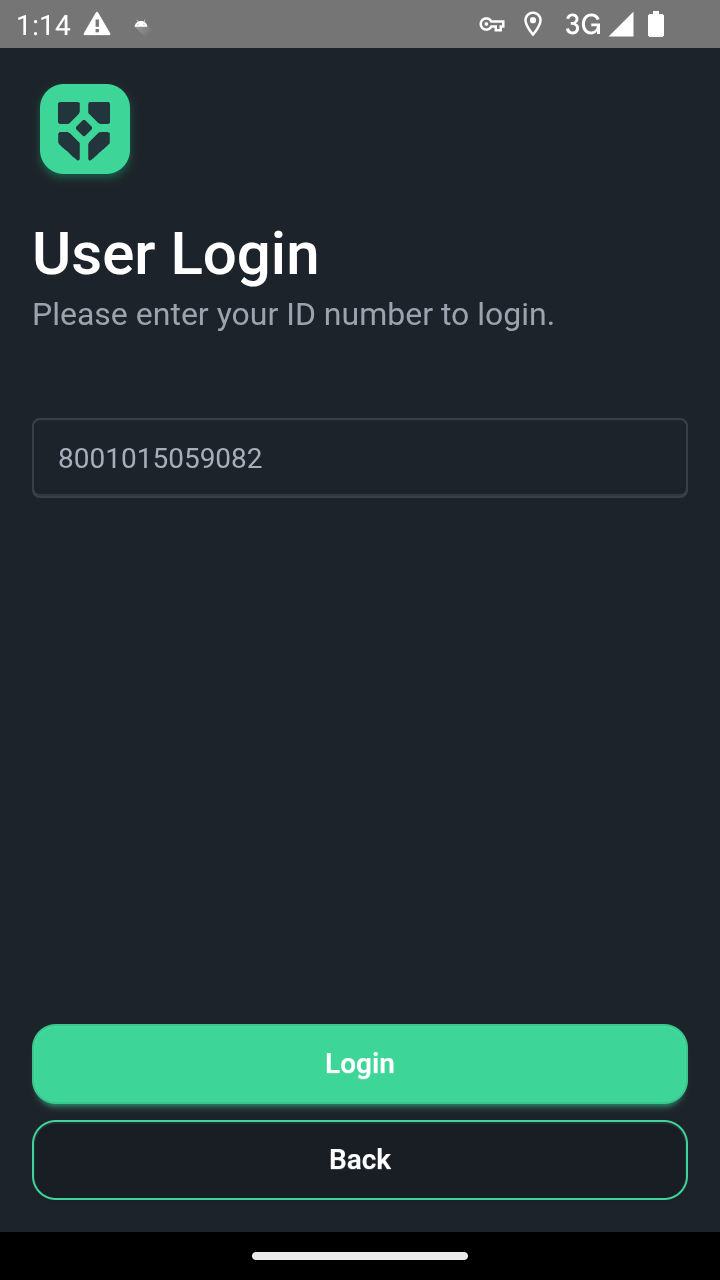
Enter Your ID Number
Enter your South-African ID number to log in.
Step 3
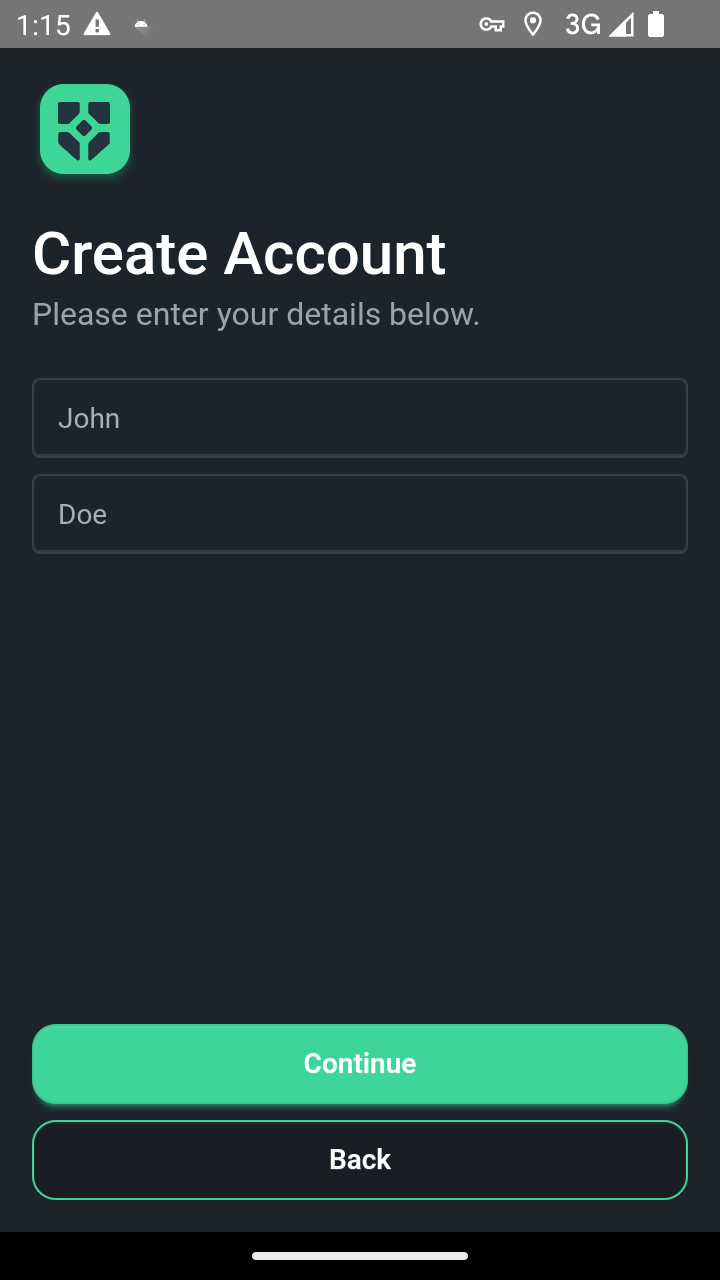
Register Your Profile (First Time Only)
If this is your first time logging in, you'll need to enter your first name and last name. This only happens once - after registration, the device will remember your details.
Step 4
Home Screen
After logging in, you'll see the home screen. Here you can use the PTT (Push-to-Talk) button to communicate with your team, and the Panic button for emergencies.
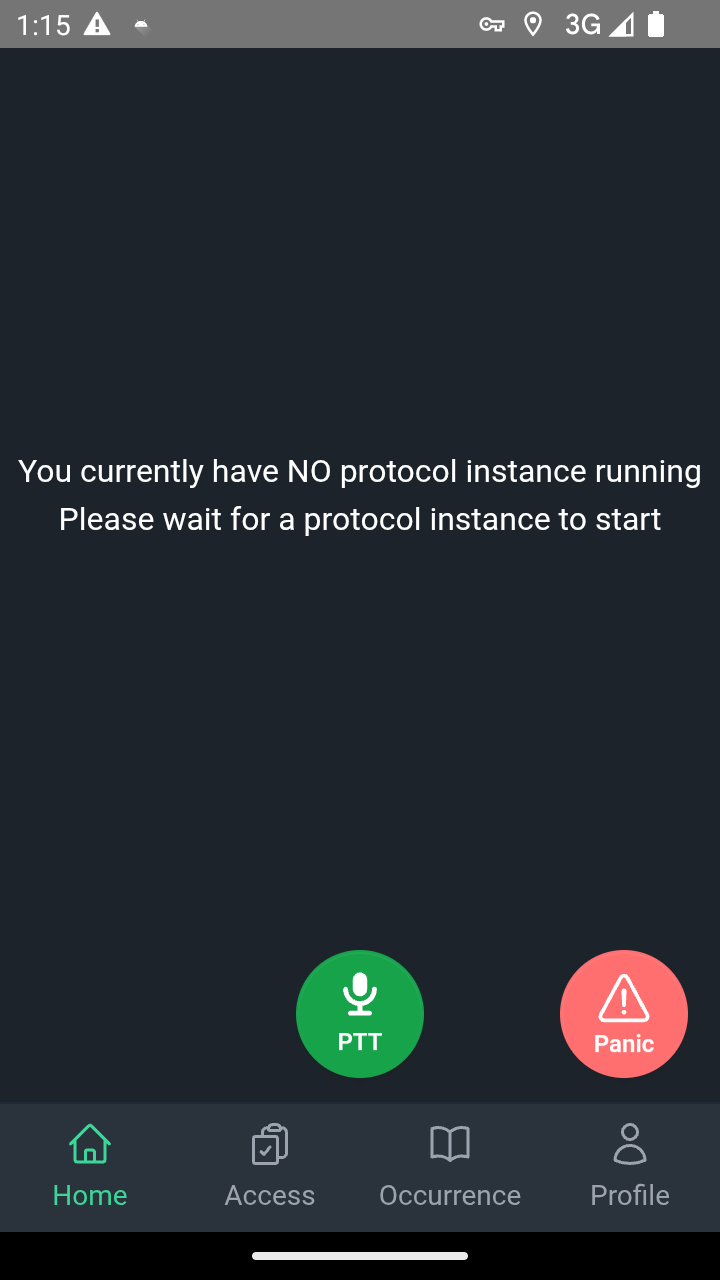
- Press and HOLD the PTT button to talk
- Press and HOLD the Panic button in emergencies
- Release the button when you're done speaking or to cancel
Step 5
Access Control
Navigate to the Access Control screen using the bottom navigation. Here you can log pedestrian entries and vehicle entries for visitors and contractors.
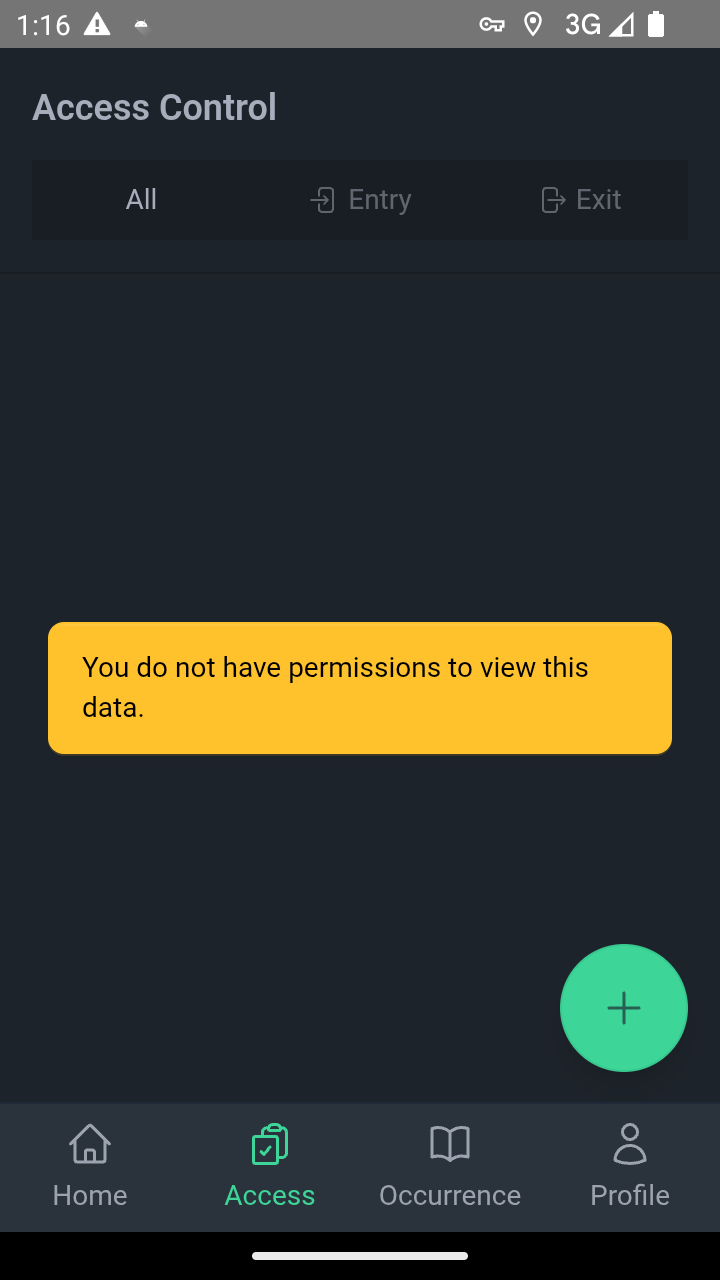
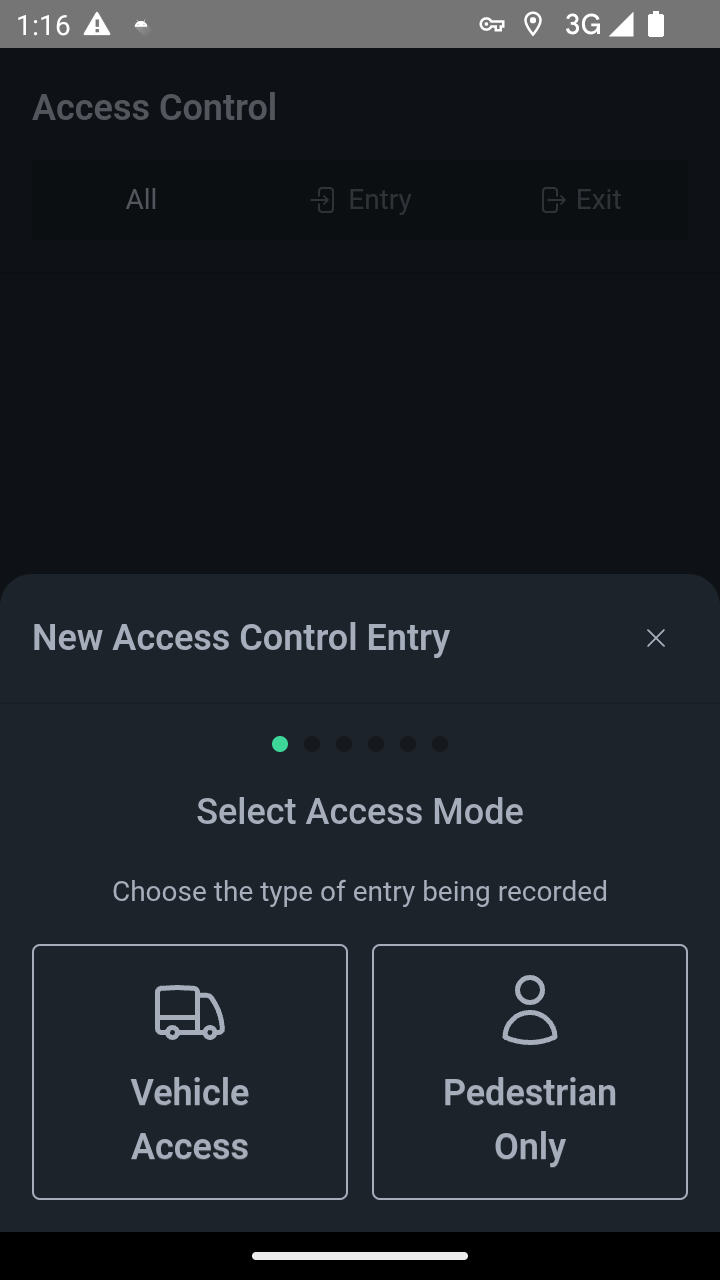
- Tap "Pedestrian" for people on foot
- Tap "Vehicle" for cars and trucks
- Fill in all required information accurately
Step 6
Occurrence Book
The Occurrence Book allows you to document incidents and events during your shift. You can add entries with images, text, or audio recordings.

- Add photos by tapping the plus icon
- Use text for detailed descriptions
- Use audio for quick voice notes